
Recordings
The app records video sessions locally on your computer.
Starting a recording in a session
The Record button in the session top bar opens a menu of what exactly to record:
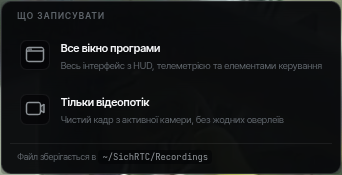
- Entire app window — the whole interface with HUD, telemetry and control elements.
- Video stream only — a clean frame from the active camera, with no overlays.
While recording, the top bar shows a timer with pause and stop buttons:
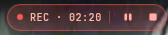
Files are saved to the folder set in the application settings — by default ~/SichRTC/Recordings.
The Recordings section
All saved files live in the Recordings section:
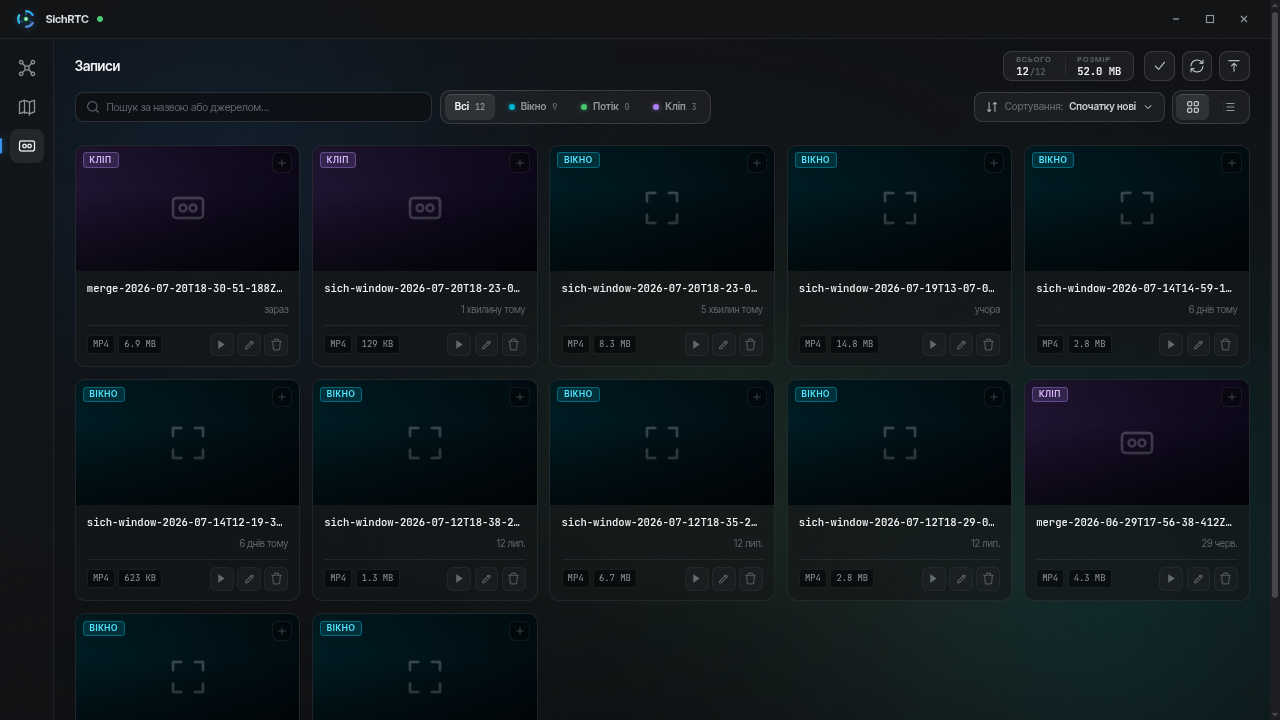
- Filters by type: Window, Stream and Clip (cut fragments and merges).
- Search by name, sorting by date.
- On a recording card: play, rename, delete.
- The ⤒ icon in the top right corner opens the folder with the files.
Cutting fragments
Open a recording — the player has trimming tools under the timeline:
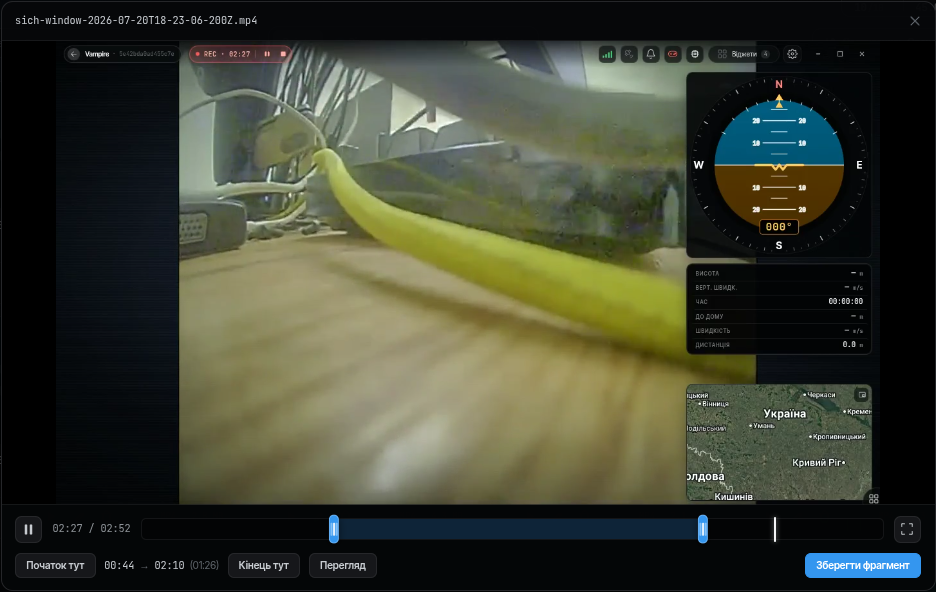
- Seek to the desired moment and click Set start.
- Set the end the same way — Set end (the bounds can also be dragged with the timeline markers).
- Preview plays only the selected fragment.
- Save fragment — the cut is saved as a separate file marked Clip; the original stays untouched.
Merging recordings
Use the + button in a card's corner to mark recordings in the order they should be joined — an action bar appears at the bottom:
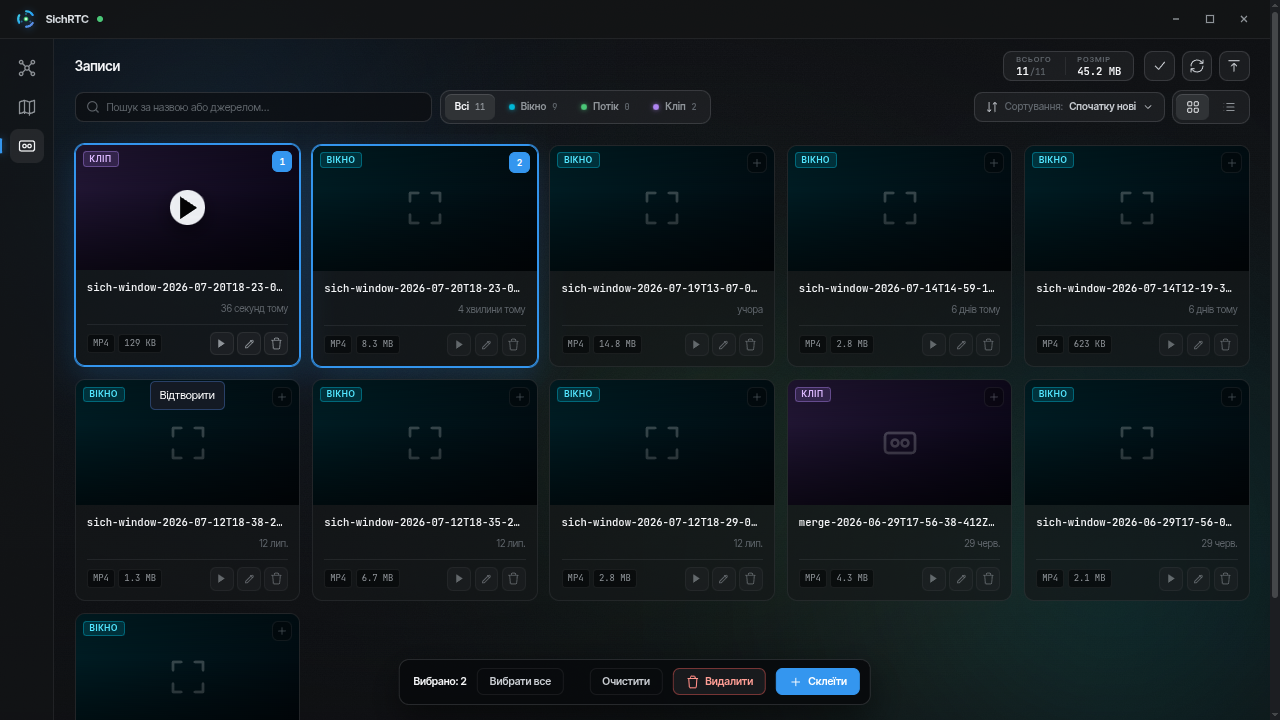
- Merge — joins the selected recordings into a single
merge-…file. - Delete — removes all marked recordings at once.
- Clear — clears the selection.