
Video session
Click Open on a free device card — the session screen opens with video and telemetry.
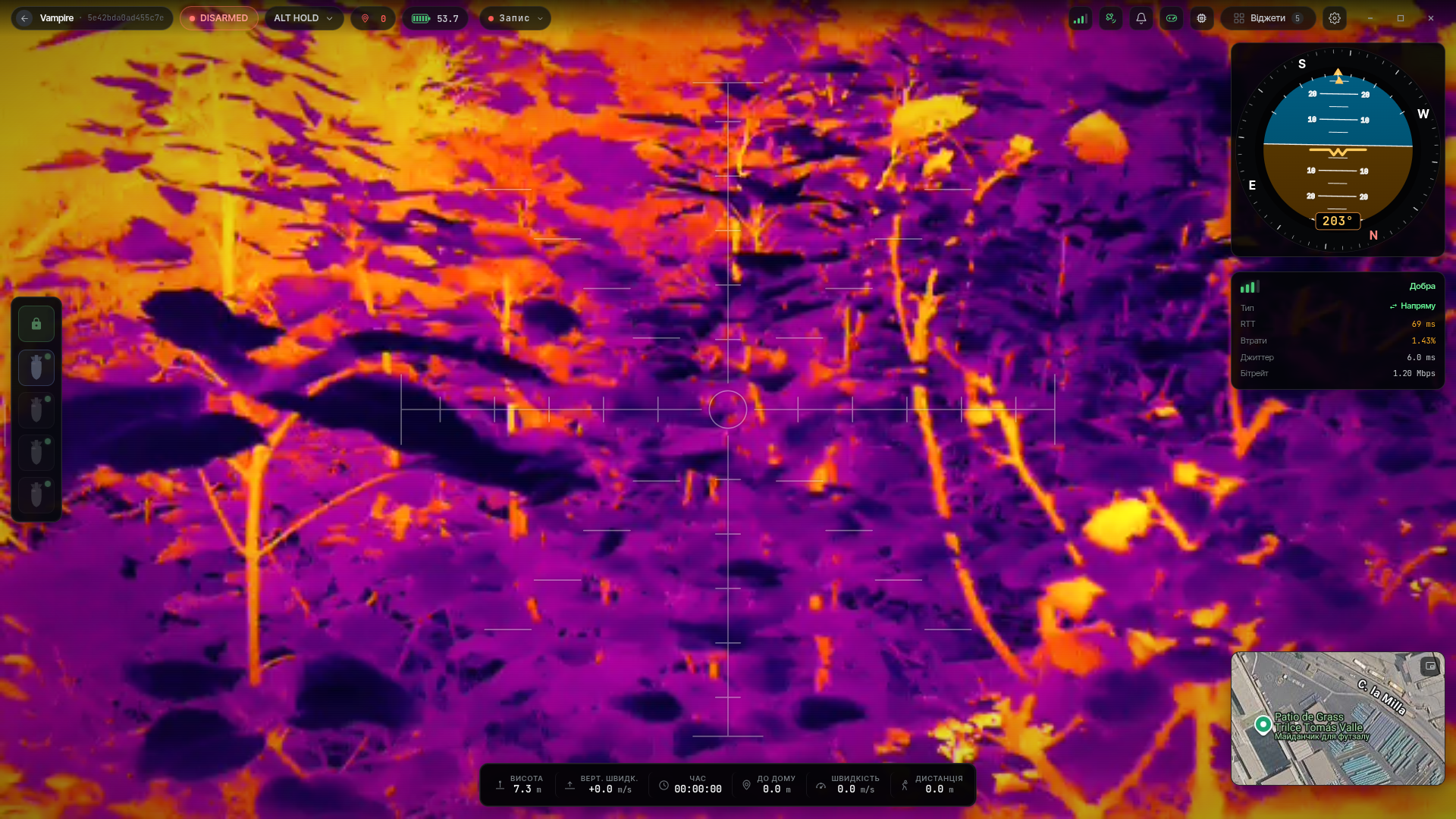
Top bar

Left to right: exit the session, device name and UID, the ARMED / DISARMED state, the flight mode, battery level and the record button. On the right — indicators: connection quality, Starlink, notifications, RC channels, onboard computer status, widgets and device settings.
Connection quality
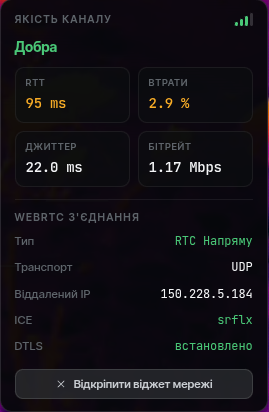
Clicking the indicator opens the link statistics:
- RTT (Round-Trip Time) — the time in milliseconds it takes a packet to reach the device and come back.
- Loss — the share of lost packets, in percent.
- Jitter — how steadily the data arrives: the lower the value, the smoother the video and audio.
- Bitrate — how much data is transferred per second. A higher bitrate gives better video quality but needs a faster and more stable link.
- Type — how the connection is established: direct or via a relay server.
- Transport — the network protocol carrying the video and audio.
- Remote IP — the network address of the device you are connected to.
- ICE — how the network connection was established;
srflxmeans an external IP address obtained via a STUN server is used. - DTLS — the state of the encryption protocol protecting the video and audio.
Starlink
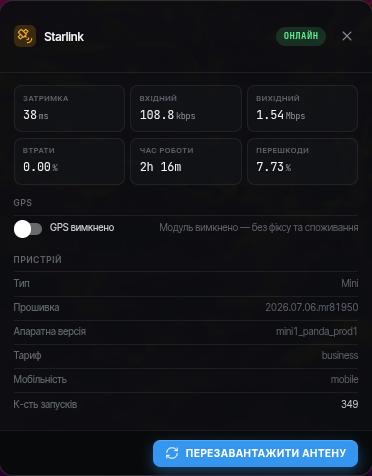
Statistics of the Starlink dish. The dish is detected automatically — once found, the icon turns green. If the link is unstable, check this indicator first.
- When a dish update is available, the app announces its download. Once downloaded, the dish can be rebooted right from this window — the update installs automatically.
- On startup the device checks whether a dish is connected, and if its GPS is enabled — turns it off.
Notifications
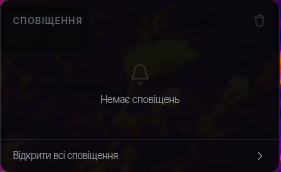
Notifications from the app and the device: link loss, low battery and so on.
RC channels
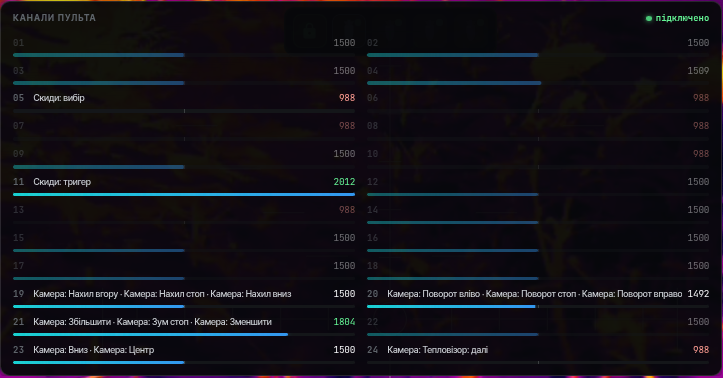
The icon is red when no RC is connected and green when it is. A click shows the current channel values and the functions assigned to them in the control settings. How to connect the RC — on the Control page.
Camera streams
The Streams panel appears when you move the cursor to the left edge of the screen, if more than one video stream is configured:
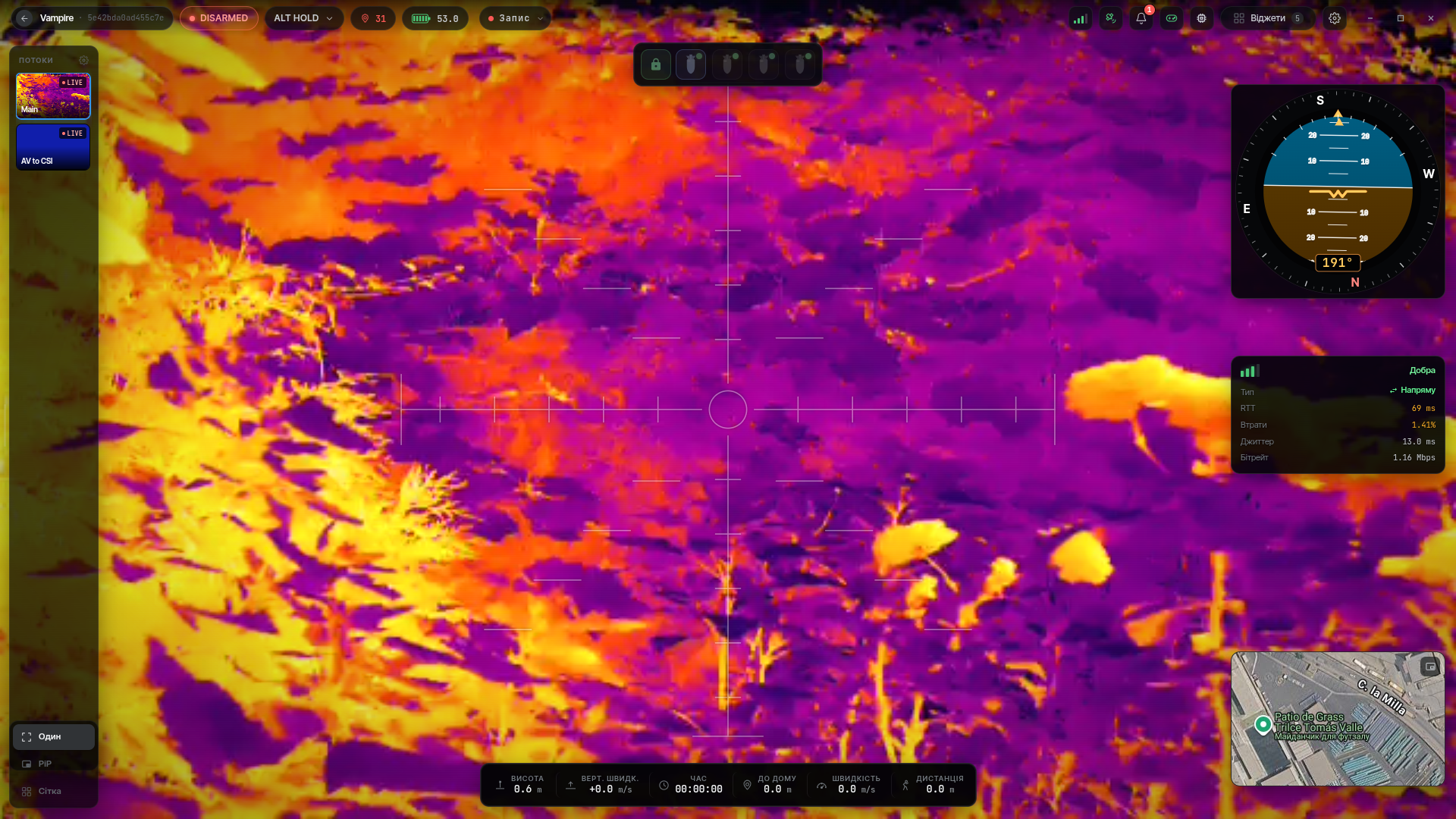
Tiles of all configured streams with live previews; clicking a tile makes that stream the main one.
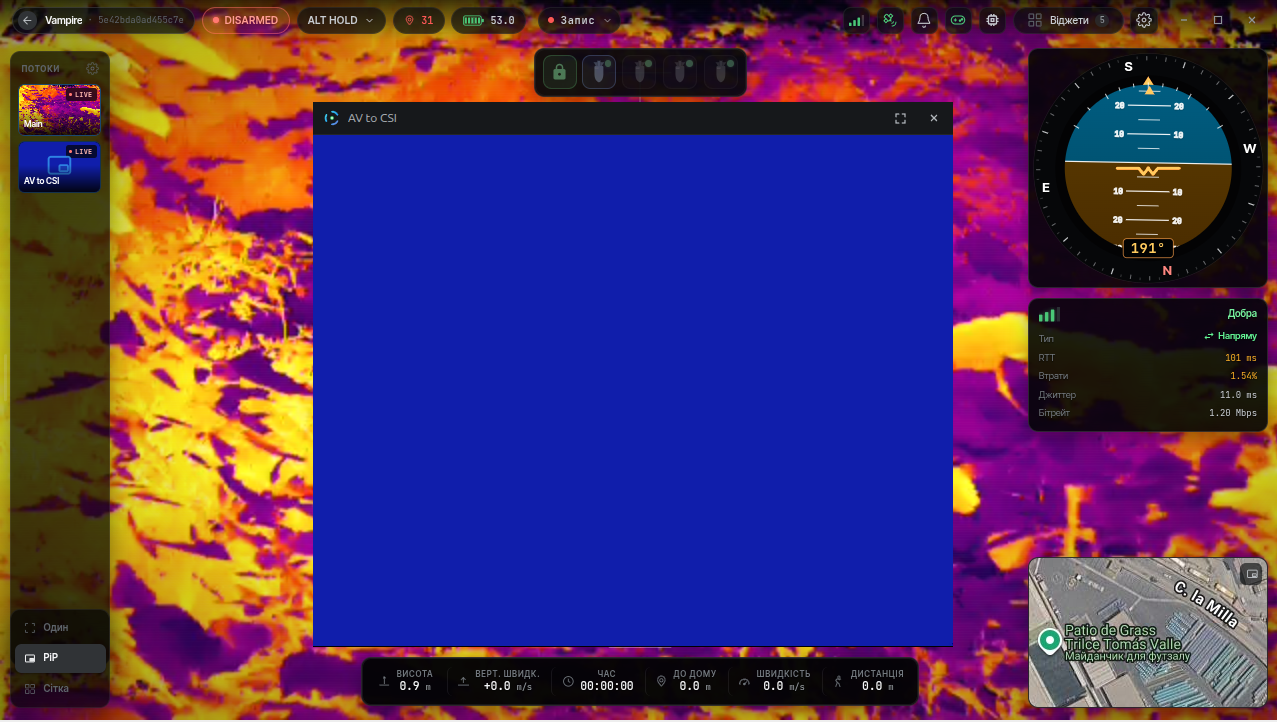
Display modes at the bottom of the panel: Single — main stream only; PiP — the main stream plus a small window with another camera.
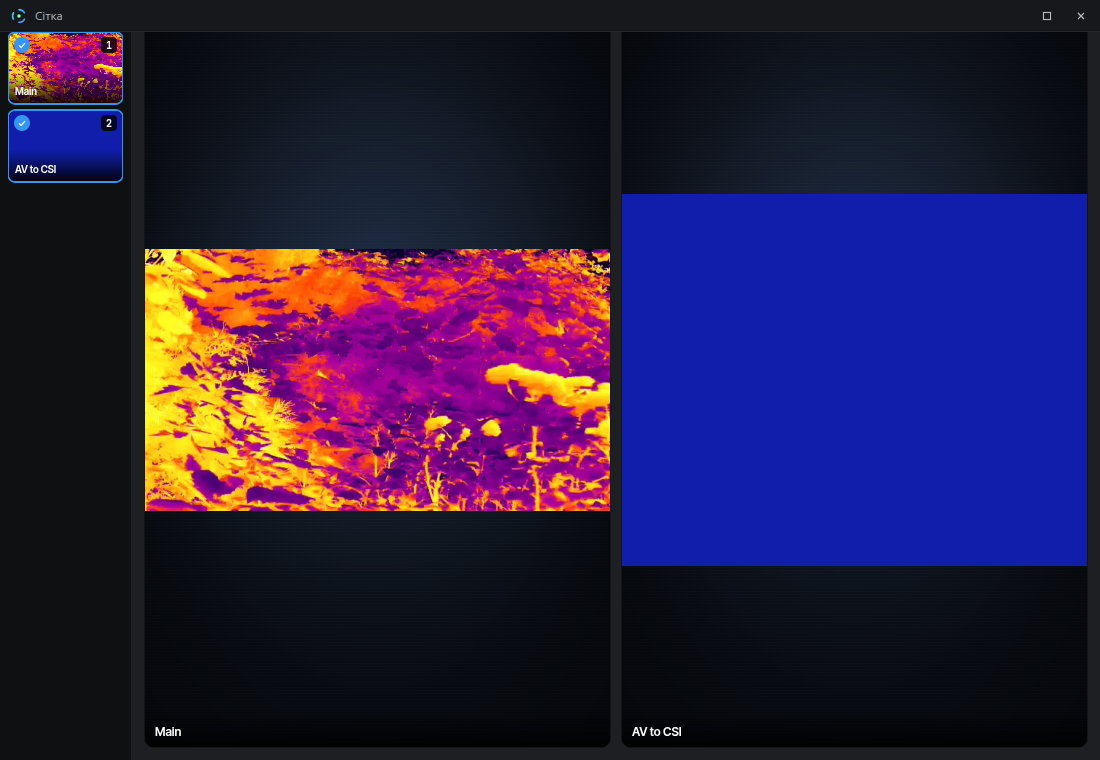
Grid — a separate window showing several streams side by side (handy for a second monitor); a stream is added to a cell by clicking its preview.
Session recording
The Record button in the top bar saves the session to disk — the whole app window or just the clean video stream. Only the main window of the app is recorded: separate windows (Grid, map) are not captured. See Recordings for details.
RC control, flight modes and failsafe — on the Control page.