
Devices
The app's main screen — cards for all your devices.
Device card
The card shows the device's state before you even connect:
- Status — Online / Offline — whether the device is connected.
- Free / Active session — whether another operator is using the device right now.
- Device type — detected from MAVLink telemetry.
- Temperature and CPU load of the onboard computer.
- Name, UID, firmware version, license state.
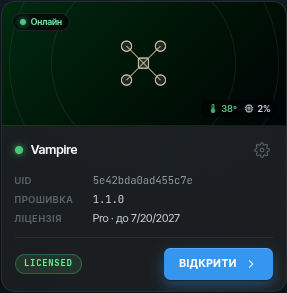
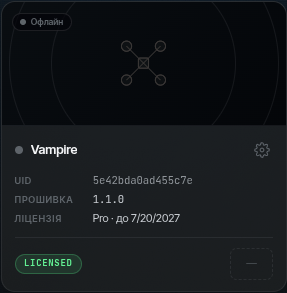
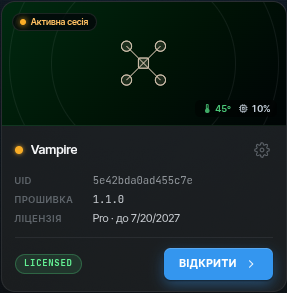
The card's main button depends on the device state:
- device is free — Open: a video session starts;
- device is busy — the app offers to watch the ongoing session or take it over.
Card menu
The ⚙ icon on the card opens a menu with additional actions:
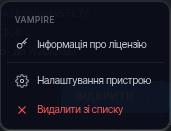
- License info — plan, expiry, key.
- Device settings — a window with the name, access sharing and firmware (below).
- Remove from list — unlink the device from the account.
The "Device settings" window
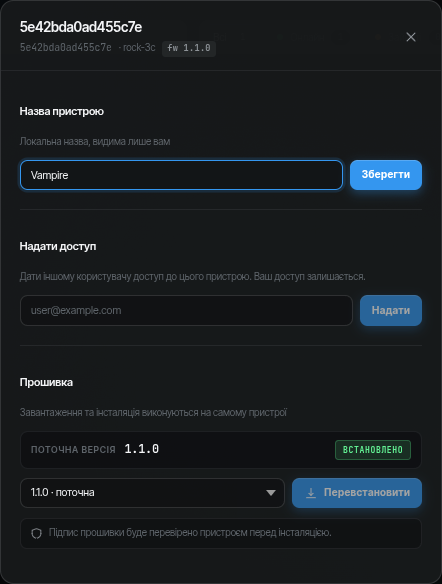
- Device name — a local name visible only to you; handy instead of the UID.
- Grant access — enter another operator's email to share the device. Your own access remains.
- Firmware — the current version and reinstall/update; see Firmware update for details.
Full onboard settings (video, control, gimbal, etc.) open during a session — see Device settings.
Search and filters
For larger fleets: search by name or UID, filters (all / online / busy / offline) and sorting by status.

New devices on the network
The number of unlinked devices discovered on your local network is shown by a badge on the Add device button. This is where activating a new device starts.