
Device activation
A new device must be linked to your account once. After activation it is yours — other users cannot see it unless you share access yourself.
How to activate
Power on the device and make sure it has internet.
Connect the computer running the operator app to the same local network as the device (same router / Wi-Fi).
Open the app's main screen — the number of devices discovered on the local network is shown by a badge on the Add device button.
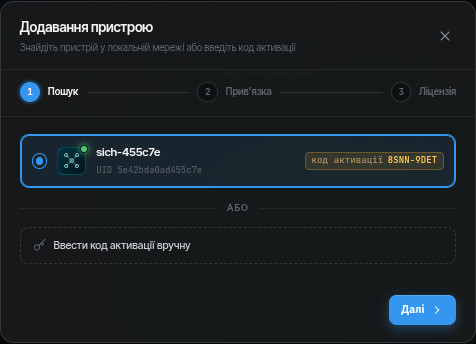
Click Add device — the adding form opens. The Search step lists the discovered devices with their activation codes; if a device was not found automatically, the activation code can be entered manually.
Select the device and click Next — the Binding step opens with the device details (name, UID, activation code).
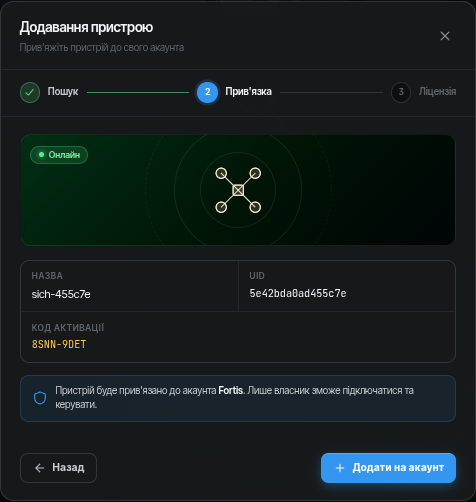
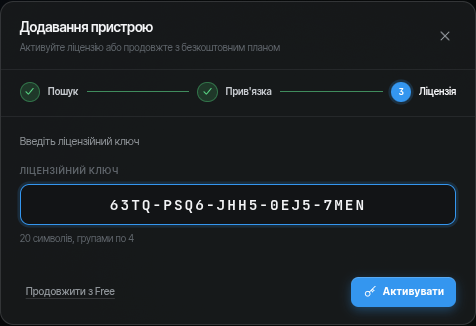
Click Add to account — the device is linked to your account, and the License step opens with the license key field.
License key
Contact support to get a key. Without a key you can click Continue with Free — the device will appear in your account, but you will not be able to connect to it.
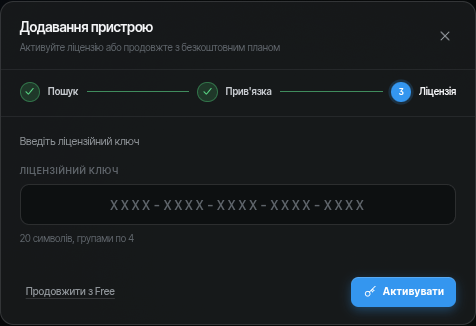
Enter the key (20 characters in groups of 4) and click Activate.
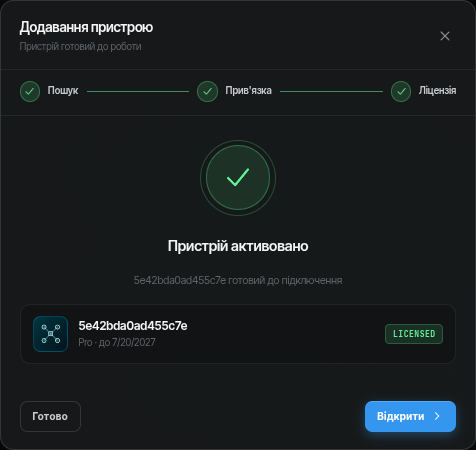
Done — the device is activated. Click Open to go straight to the device, or Done to return to the list.
If the device does not appear in the list
- Make sure the computer and the device are on the same network (no VPN, no guest Wi-Fi).
- Wait 1–2 minutes after powering the device on.
- Restart the app (network discovery refreshes on startup).
- See Troubleshooting.